
Goodreads Import
Bring your reading history from Goodreads to Pybites Books.
Export from Goodreads
First, export your data from Goodreads:
- Log in to Goodreads
- Go to My Books
- Click Import and Export (in the left sidebar)
- Click Export Library
- Wait for the export to complete
- Download the CSV file
Import to Pybites Books
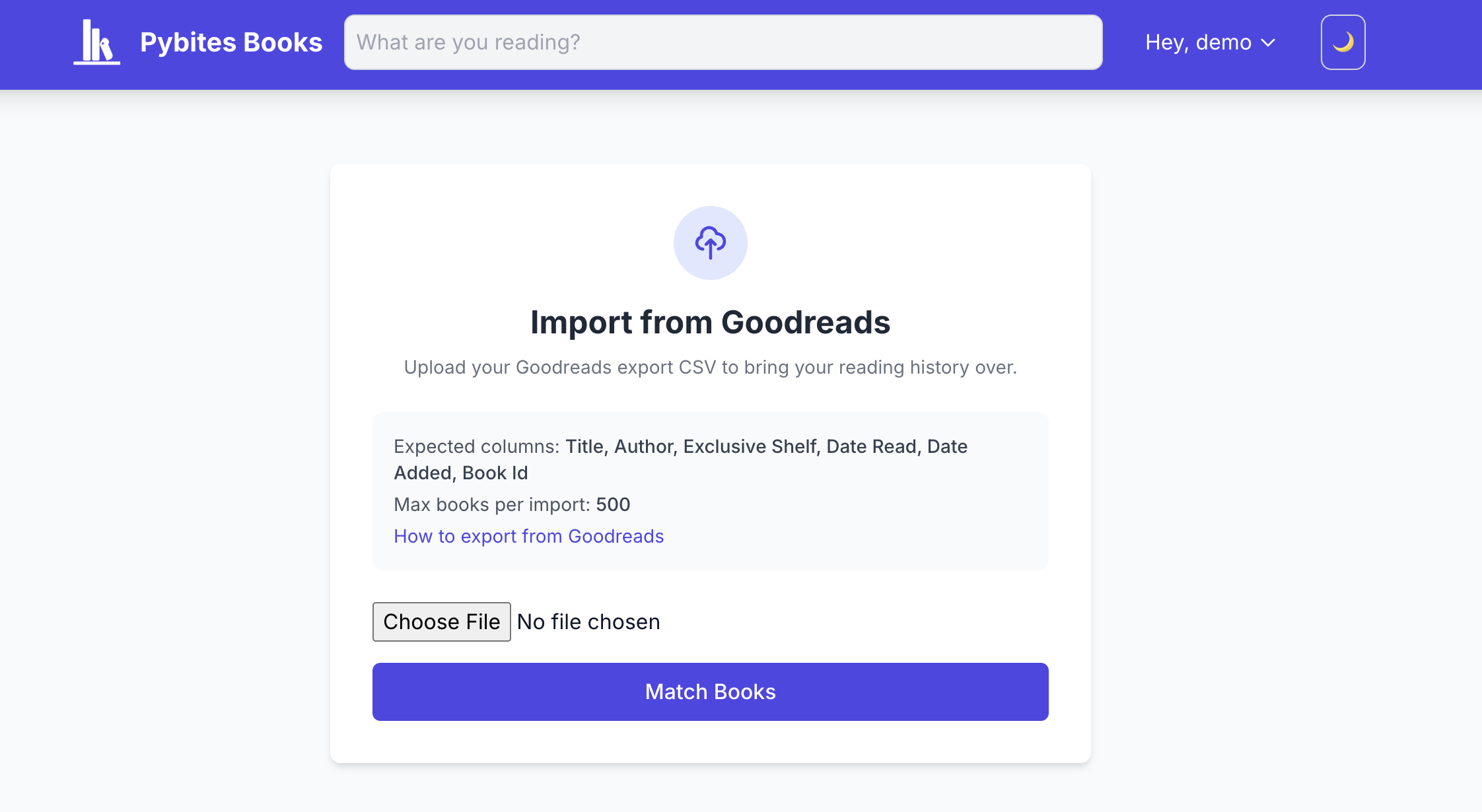
- Go to Goodreads Import from the user menu and upload your CSV file. Don't close the browser tab until the upload completes.
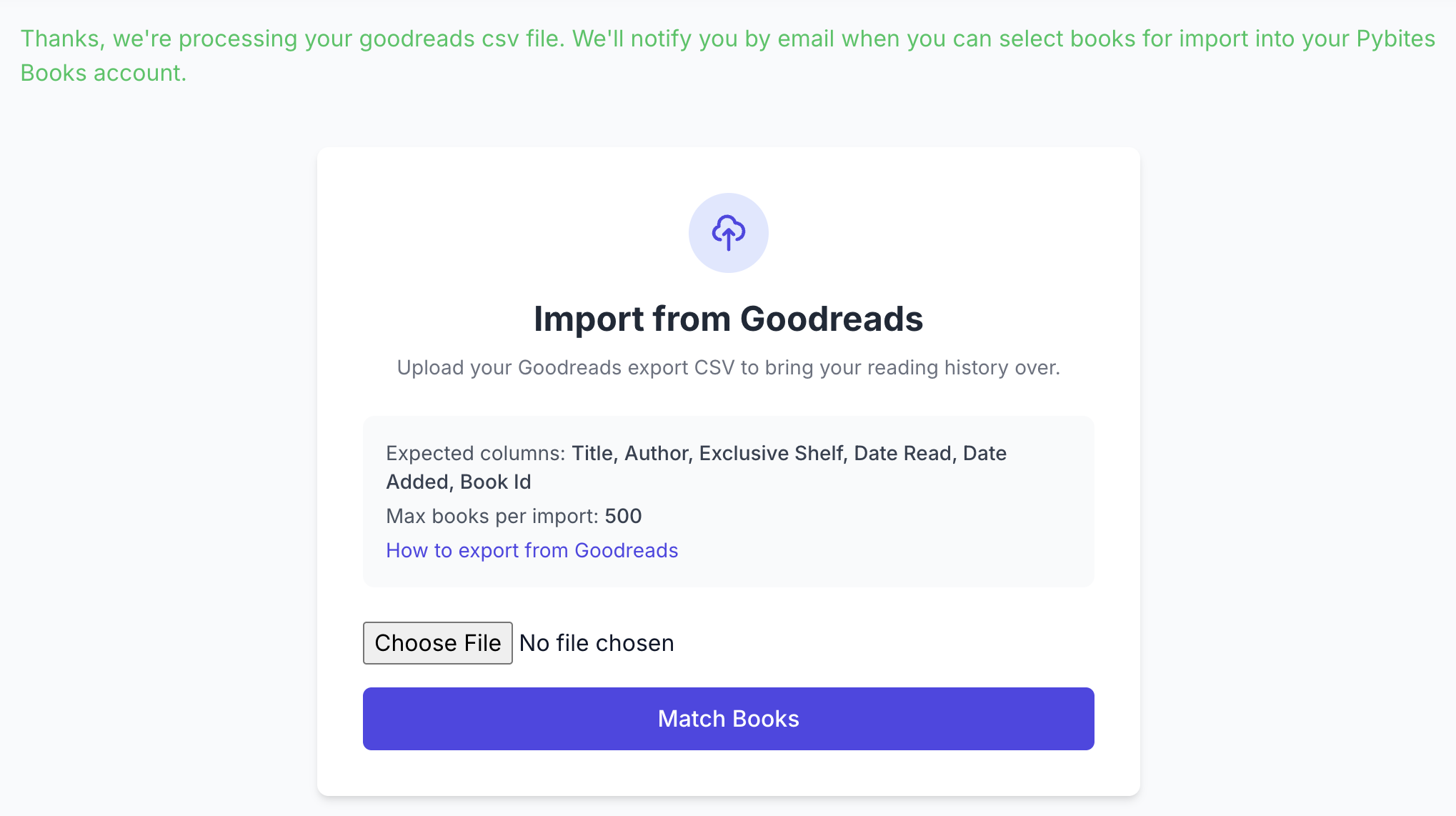
- You'll see a confirmation that your file is being processed. You can close the tab now — the matching runs in the background.
- When processing is done, you'll receive an email with a link to preview the matched books
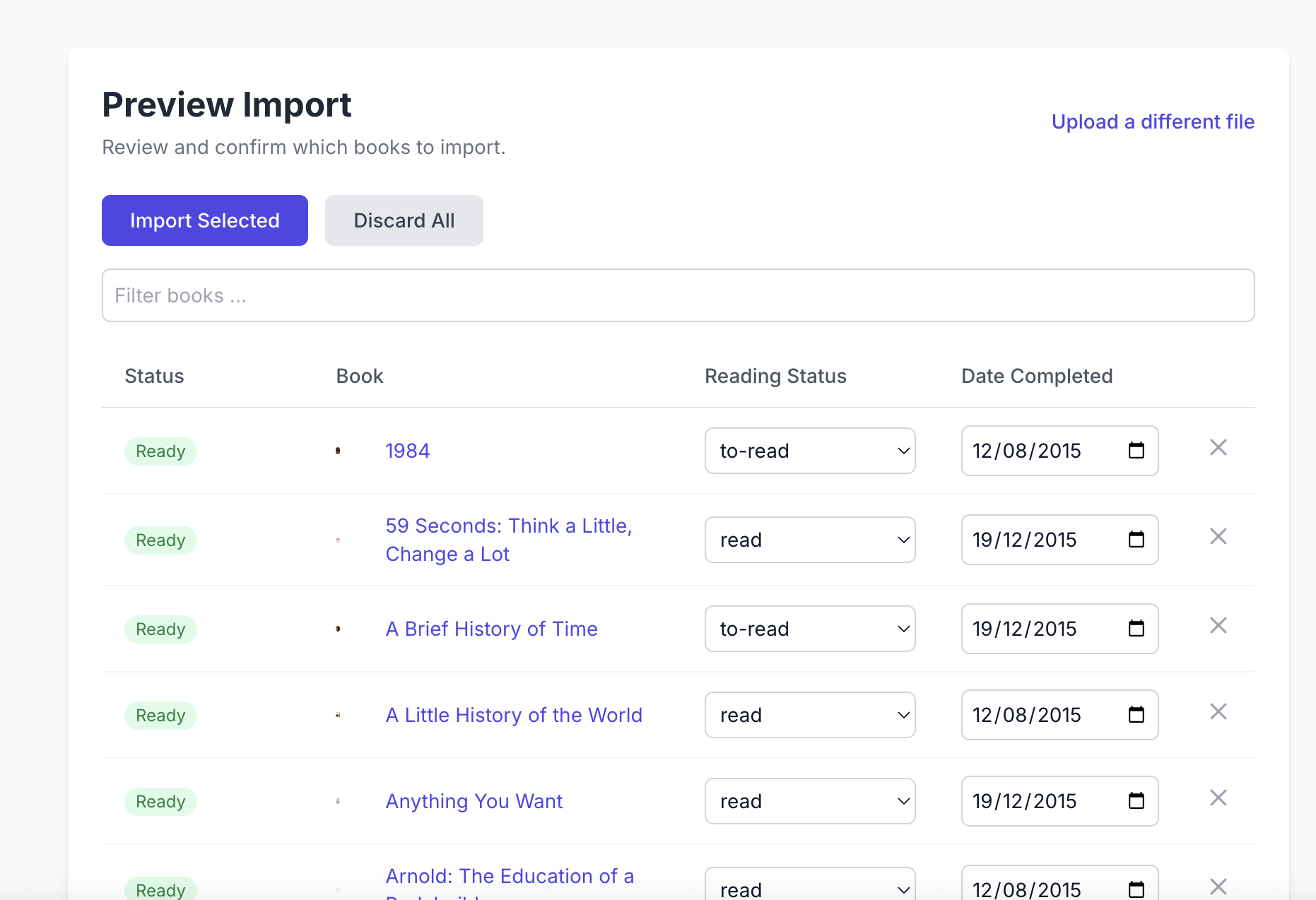
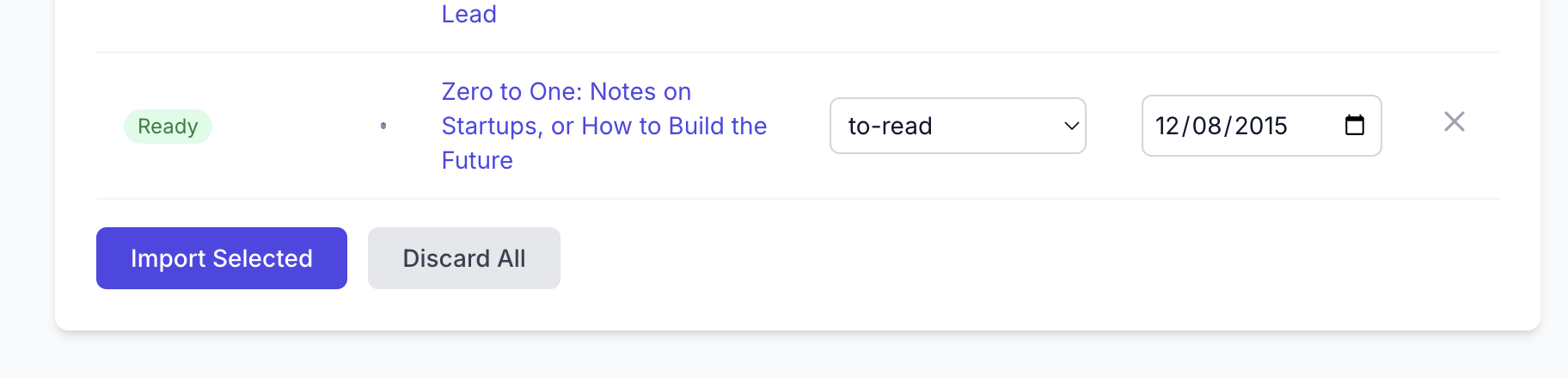
- Review the books, adjust reading statuses if needed, and click Import Selected to confirm
How Shelves Are Mapped
| Goodreads Shelf | Pybites Books Status |
|---|---|
read |
Completed |
currently-reading |
Reading |
to-read |
To Read |
Books on other shelves are imported as "To Read" by default.
Completion Dates
If Goodreads has a "Date Read" for a book, it's preserved during import. This keeps your reading history accurate.
What Gets Imported
- Book title and author
- Reading status
- Completion date (if available)
What Doesn't Get Imported
- Goodreads reviews
- Shelves beyond the main three
- Social data (friends, likes)
Handling Duplicates
If a book already exists in your Pybites Books library, it won't be imported again. The import only adds new books.
Troubleshooting
"Book not found"
Some books in your Goodreads export may not be found in Google Books. These are skipped during import. You can add them manually later.
Large Libraries
If you have hundreds of books, the import may take a few minutes. The process runs in the background—you'll receive an email when it's ready.